

SMM Panel Order Management: Daily Operations Guide
Selling is the easy part. What keeps an SMM panel alive is the quiet daily work of watching orders, fixing what breaks and paying back what was not delivered.
In this chapter
- How an order moves from your customer to a provider and back, and what each status really means.
- How to spot stuck orders early and what to do with them.
- How to read provider errors and when to move a service to another provider.
- How partial deliveries, refunds, refill and cancel requests should be handled as a repeatable workflow.
- A daily and weekly routine you can copy, plus how to keep provider balances from becoming the bottleneck.
If you have not set up services yet, read the services and catalog chapter first. This chapter assumes your panel is live and orders are coming in.
The order lifecycle
Every order on an SMM panel is really two orders: the one your customer places with you, and the one your panel places with a provider over the SMM API v2. Your job is to keep those two in sync and to make sure the customer is charged only for what was actually delivered.
A typical order goes through these steps:
- The customer picks a service, enters a link and a quantity, and pays from their balance.
- Your panel sends the order to the provider connected to that service and stores the provider's order ID.
- The provider reports a start count and begins delivery.
- Your panel checks the provider's status at intervals and mirrors it on the customer's order.
- The order ends as completed, partial or canceled. If something was not delivered, the unused part goes back to the customer's balance.
On SMMFor, order sync with providers is automatic, so steps 2 to 5 normally happen without you touching anything. Operations work is about the orders that do not follow the happy path.
What each status means
Statuses are standardised across panels that use API v2, which is why resellers and their scripts understand yours without explanation.
| Status | What it means | What you should do |
|---|---|---|
| Pending | Accepted, waiting to be sent or waiting for the provider to start | Nothing, unless it stays here too long |
| In progress | The provider has started delivery | Nothing, unless it stalls |
| Completed | The provider says the full quantity was delivered | Only act if the customer reports a drop |
| Partial | Only part was delivered; the rest is refunded | Check the refund landed on the balance |
| Canceled | Nothing (or nothing more) will be delivered; the charge is refunded | Check the refund and why it happened |
Your admin side may show an extra internal state for orders waiting to be sent or being processed manually. Customers do not need to see those details; they need a status that is honest and a balance that is correct.
A completed status means the provider reported completion. It is not a guarantee that the numbers will stay. That is what refill is for, and it is why your service descriptions must say whether a service has refill and for how long.
Monitoring stuck orders
A stuck order is one that sits in Pending or In progress much longer than the service's normal delivery time. Stuck orders are the single biggest source of tickets, and most of them can be caught before the customer notices.
How to define "stuck"
There is no universal number. Use the service's own speed as the yardstick. Example thresholds (adjust to your services):
| Service type | Normal start | Treat as stuck after |
|---|---|---|
| Fast likes or views | Minutes | 6 hours with no start |
| Followers or members | Within a few hours | 24 hours with no progress |
| Slow or drip-style services | Varies | 48 hours with no change in remains |
Write these thresholds down per category. A threshold you keep in your head will be applied differently every day.
Let automation do the watching
SMMFor has automation rules for exactly this. A rule such as "order stuck for X hours" can notify you or cancel the order automatically, and you can narrow it with conditions such as status, provider, service IDs or a minimum charge. A sensible setup for a new panel:
- One rule that only notifies you about stuck orders on expensive services, so you can look at them personally.
- One rule that cancels cheap orders stuck far beyond the normal time, so the customer gets their money back without a ticket.
- Admin notifications in Telegram, including orders waiting to be sent to a provider, so you see problems on your phone.
What to do with a stuck order
- Open the order and compare the start count with the current count on the link, if it is public.
- Check whether the provider still lists the service and whether other orders on the same service are moving. One stuck order is a hiccup; ten stuck orders on one service is a provider problem.
- If the provider supports it, request a cancel and let the refund flow back through your panel.
- If the whole service is stuck, disable it or move it to another provider before more orders pile up (see below).
- Reply to any open ticket about that order with what you did and when the customer can expect a result.
Provider errors and fallbacks
Providers fail in a few recurring ways. Learning to recognise them saves hours.
| Symptom | Likely cause | Response |
|---|---|---|
| Orders not being sent, "not enough funds" | Your balance at the provider ran out | Top up the provider, then resend |
| "Incorrect service ID" or similar | The provider removed or renumbered the service | Remap the service to a new provider service |
| "Incorrect link" | Wrong link format, private account, deleted post | Cancel and tell the customer exactly what to fix |
| Quantity rejected | The provider changed min or max | Update your min and max to match |
| Orders accepted but never start | Provider overloaded or the service is dead | Pause the service, move it, cancel what is waiting |
| Many partials on one service | Source drying up at the provider | Lower the max, warn customers, or switch provider |
Building a fallback plan
Do not rely on a single provider for your best-selling services. For each of your top services, keep a note of a second provider service that is a reasonable substitute: similar quality, similar speed, a price that still leaves you a margin. When the primary provider fails, you switch the service's provider mapping and new orders go to the backup. Customers see the same service in your catalog; only the source changes.
Test your backup before you need it: place a small real order on it once and record how it behaved. How to evaluate providers in the first place is covered in how to choose an SMM provider.
When you switch providers, check that the backup offers the same refill period and cancel support. If your description promises a 30-day refill and the backup offers none, you have created future tickets.
Partial deliveries and refunds
A partial order is a normal outcome, not a disaster. The provider delivered some of the quantity and could not deliver the rest. The fair result is that the customer pays only for what was delivered.
On SMMFor, partial refunds are handled automatically: when the provider reports a partial with a remaining amount, the undelivered part is credited back to the customer's balance and the order's charge is reduced. Your work is to:
- Spot-check partials weekly, especially large ones, to confirm the refund amount matches the remains.
- Watch which services produce partials often. A service with frequent partials needs a lower max, a clearer description or a new provider.
- Never "fix" a partial by manually marking it completed. If a customer received 700 of 1,000, the honest record is a partial.
Refunds to balance versus refunds to card
Almost every panel refunds to the customer's panel balance, not to the original payment method. That should be stated plainly in your terms (see the legal and policies chapter). Refunding a deposit back to a card or wallet is a separate, rarer decision, usually only for unused deposits, and it is done through your payment gateway, not through the order.
Refill and cancel requests as a workflow
If you need the concepts behind drip-feed, refill and cancel, read drip-feed, refill and cancel explained. Here we focus on how to process them every day.
Refill workflow
SMMFor passes refill requests to providers that support them, and a customer can request a refill from their order page or through the API. Rules such as "only for completed orders", "once every 24 hours" and "within the refill period" are enforced for you. Your workflow:
- Each day, look at refills in Rejected or Error state. These are the ones customers will ask about.
- For a rejected refill, check the reason. If the drop is too small or the refill period ended, explain that politely in the ticket.
- If the provider rejected a refill that should have been accepted, raise it with the provider and keep the customer informed.
- Track which services generate the most refill requests. A service that drops heavily is costing you support time, even if the provider eventually refills it.
You can also add an automation that requests a refill some days after completion for services where drops are common, so customers do not have to ask.
Cancel workflow
Cancel is only possible when the provider supports it and the order has not finished. Treat cancel requests in this order:
- Confirm the service supports cancel; if not, tell the customer before they wait.
- If the order has not started, a cancel usually goes through quickly and the full charge comes back.
- If it has started, the result is often a partial: the delivered part is kept, the rest refunded.
- If the provider refuses, the order continues. Say so clearly rather than promising a cancel you cannot deliver.
Daily and weekly routines
A routine turns operations from firefighting into a checklist. Here is a starting point for a small panel run by one person.
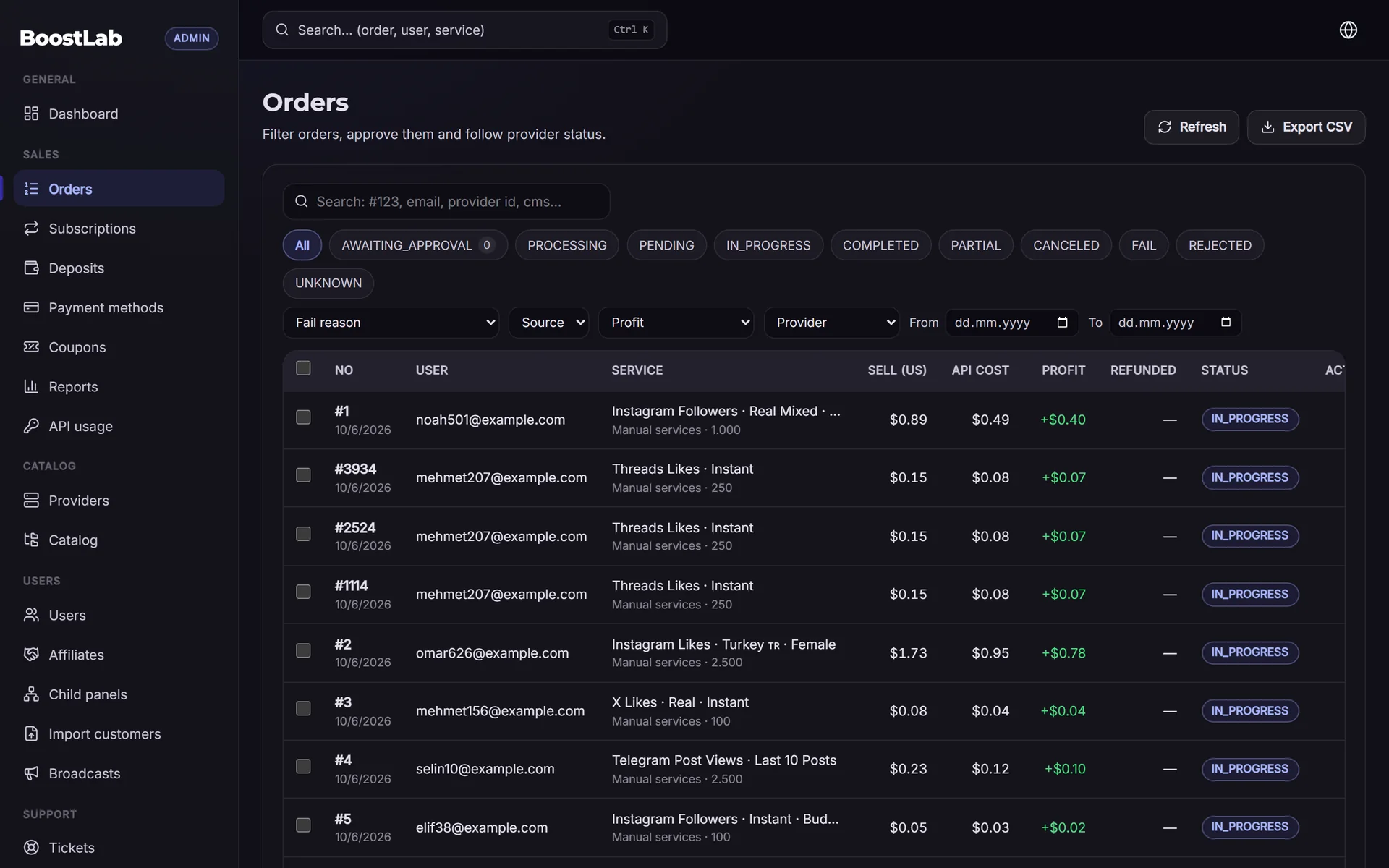
Daily (15 to 30 minutes)
- Check Telegram admin alerts from overnight: stuck orders, orders waiting to be sent, low provider balance.
- Open the list of orders in Pending for longer than your threshold and act on each.
- Review refills in Rejected or Error state.
- Check provider balances against your expected sales for the next day.
- Answer every open ticket (covered in the customer support chapter).
- Confirm any manual or bank transfer payments waiting for approval.
Weekly (1 to 2 hours)
- List services with the most partials, cancels and refill requests. Decide for each: keep, fix, reprice or replace.
- Compare provider prices with your selling prices. If a provider raised prices, your margin may have quietly disappeared.
- Place small test orders on new or changed services.
- Look at disabled services: re-enable if the provider is back, delete if not.
- Review profit by service and by provider. Margin planning is covered in SMM panel pricing and margins.
- Post an update for customers if anything changed (new services, removed services, price changes).
Monthly
- Review your top 20 services by revenue and confirm each has a tested backup.
- Remove services nobody has ordered in months; a smaller catalog is easier to keep healthy.
- Check staff permissions if you have staff accounts, and look through the audit log for unusual actions.
Managing your balance with providers
Your panel is prepaid on both sides: customers pay you first, and you pay providers first. If your provider balance hits zero, orders stop being sent even though customers have paid. That is the worst kind of stuck order, because it is entirely your fault.
A practical approach:
- Estimate daily spend per provider from the last week. Example: if a provider costs you around $40 a day, keep at least three to four days of spend there.
- Set a low-balance alert. SMMFor's Telegram admin notifications warn when a provider balance drops below a threshold you choose; in the Telegram bot,
/balanceshows provider balances. - Top up before weekends and holidays, when you may be slower to react.
- Do not park large amounts with a provider you have not worked with for long. Spread risk across providers in proportion to how much you trust them.
| Example provider | Avg. daily spend | Target balance | Alert at |
|---|---|---|---|
| Main provider | $40 | $150 | $60 |
| Backup provider | $5 | $30 | $10 |
| Niche provider | $2 | $15 | $5 |
All numbers above are examples; set your own from real data.
Common mistakes
- Letting orders sit in Pending because "the provider will catch up". Customers notice before you do.
- Marking partials as completed to avoid refunds. It saves a little money and costs trust.
- Switching a service to a cheaper provider without checking refill and cancel support.
- Running out of provider balance on a Friday night.
- Keeping hundreds of services you never test. Every untested service is a ticket waiting to happen.
- Not writing down thresholds and routines, so every day is improvised.
If you would rather spend this time on operations than on servers and scripts, SMMFor handles hosting, order sync and refunds, and you can start with a 3-day free trial.
Next step
Good operations prevent most problems, but customers will still have questions. Continue with SMM panel customer support to set up tickets, response targets and replies that keep customers coming back. When you are ready to run all of this on your own panel, open one on SMMFor and compare plans on the pricing page.